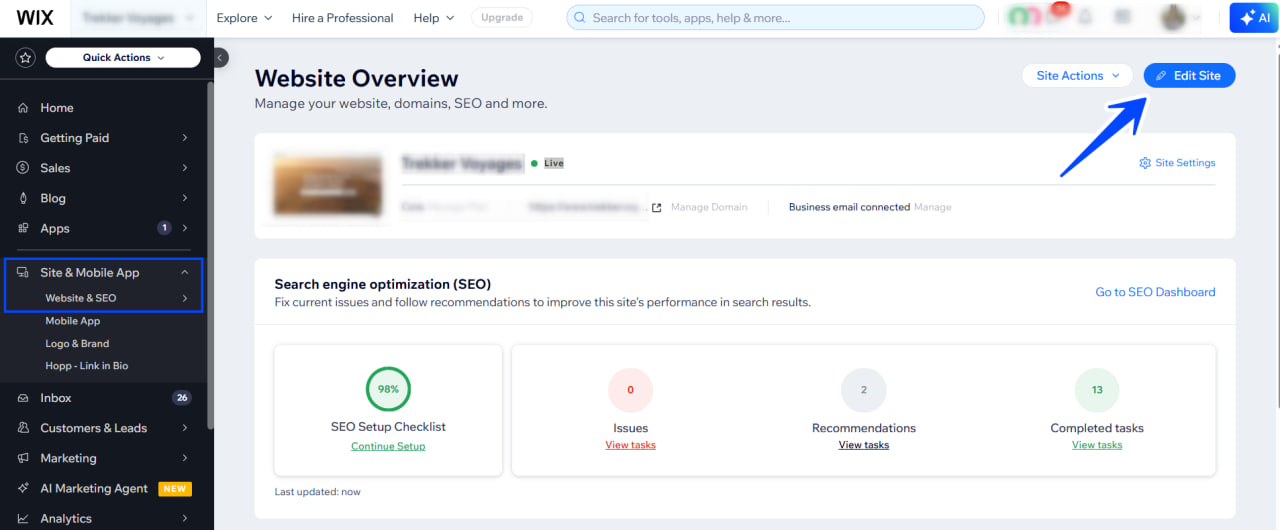
Go to your website’s Editor (choose your site → Edit Site)
Step 3: Add a new page or section
In the Wix Editor, click the Menus & Pages section
Click + Add Page (or select an existing page where you want the booking embedded)
Name it something like “Book Now” or “Reservations”
Step 4: Add an Embed Element
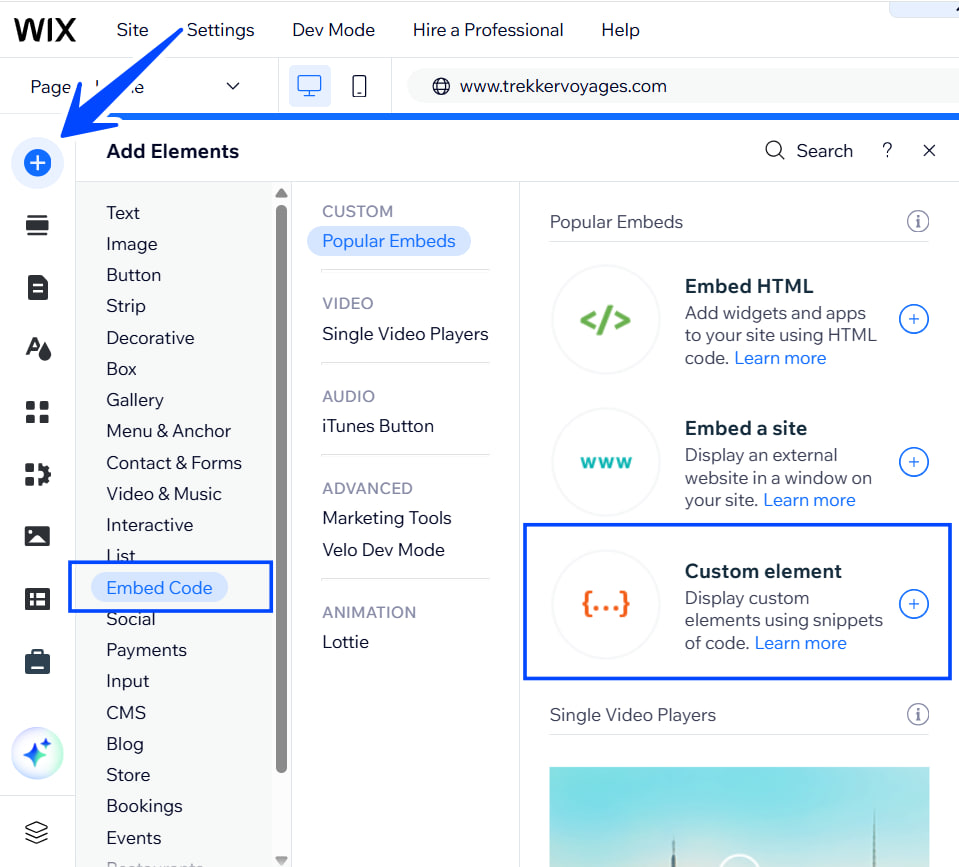
Inside the new page, click + Add (left sidebar)
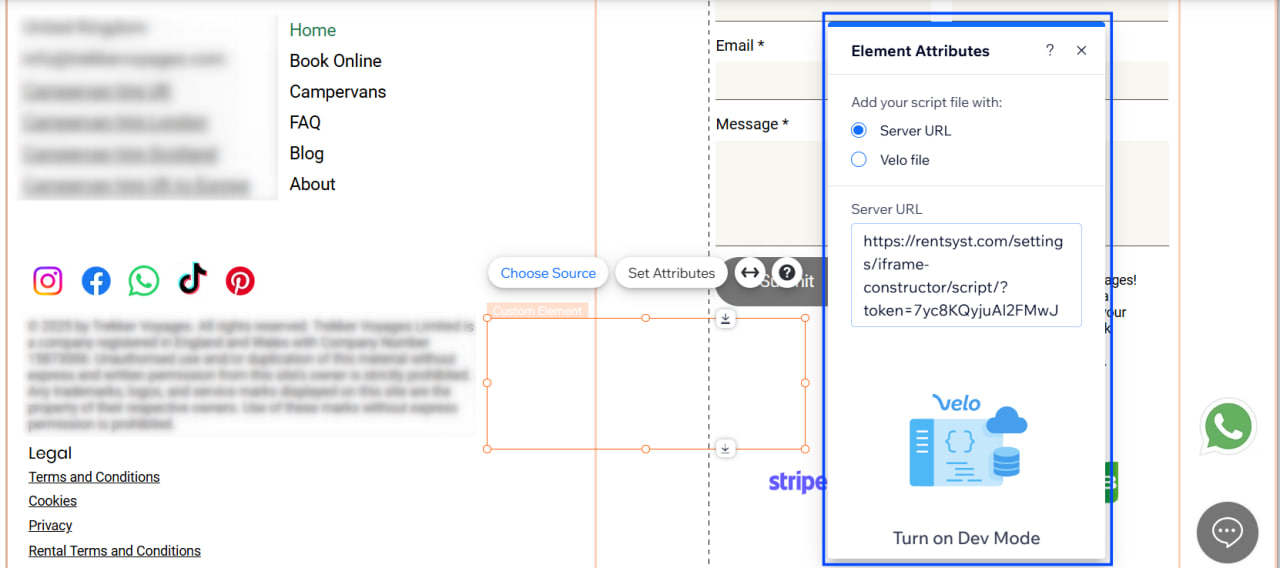
Select “Add Element”: Embed Code – Custom element
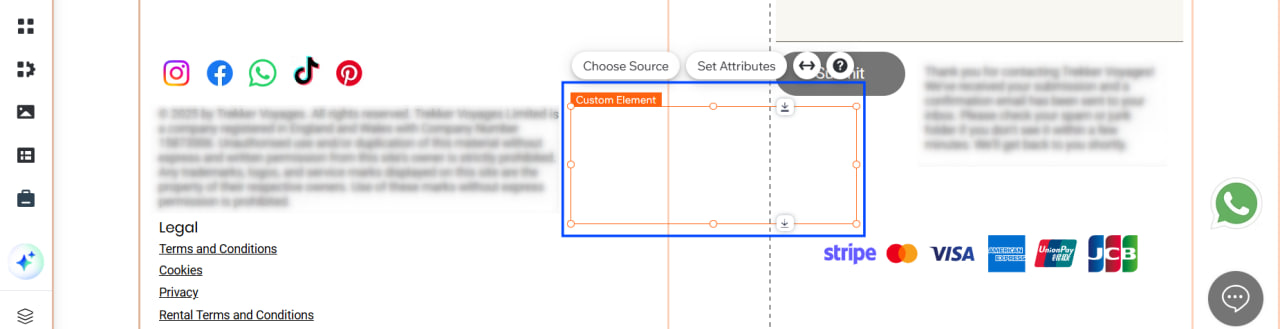
3. Choose Embed HTML iframe 4. Resize the block as needed to fit the page layout
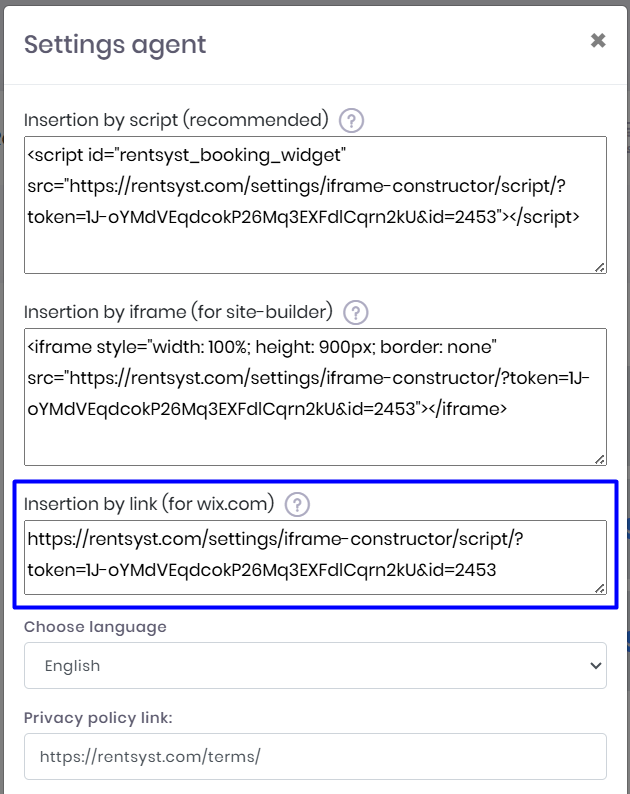
Step 5: Paste Your RentSyst Link
Click on the embed block → Settings
Choose Enter Code
Paste the following code (replace the link with your booking page URL):
Step 6: Paste booking shortcode.
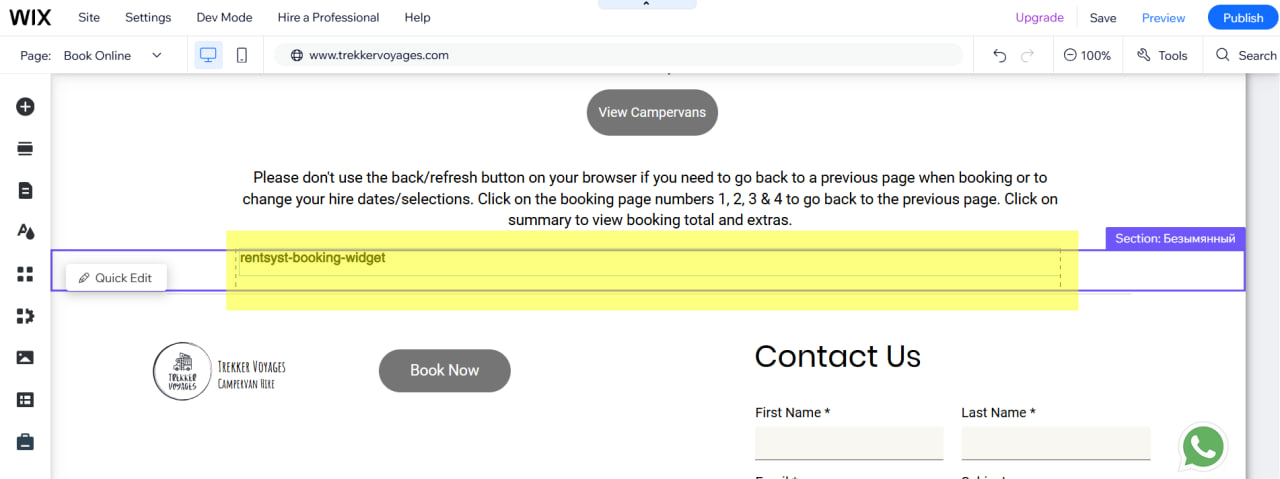
Add new component as a simple text. Place a shortcode rentsyst-booking-widget on your reservation page, where you would like to see the final booking page.
Adjust the height and width value if needed to fit your page length or avoid margins.
Step 6: Preview and Publish
Click Preview to test the booking page integration
If everything looks good, click Publish to go live
The booking page is ready!
Now your RentSyst booking system is live on your Wix site – customers can browse your fleet, check availability, and complete bookings directly from your website.