
RentSyst supports now reporting every vehicle handover to the AADE Digital Client List automatically (Ψηφιακό Πελατολόγιο). A record is registered at AADE when the order starts and closed when the vehicle is returned.
The integration works through your own myDATA REST API account, so records are sent under your company’s credentials directly.
Prepare the following from your AADE myDATA account:
If you don’t have REST API credentials yet, follow the “How to get myDATA REST API credentials” link in the connection window.
Step 1. Open Integrations in your RentSyst account. In the Aade mydata digital client list section, click myDATA Digital Client List.
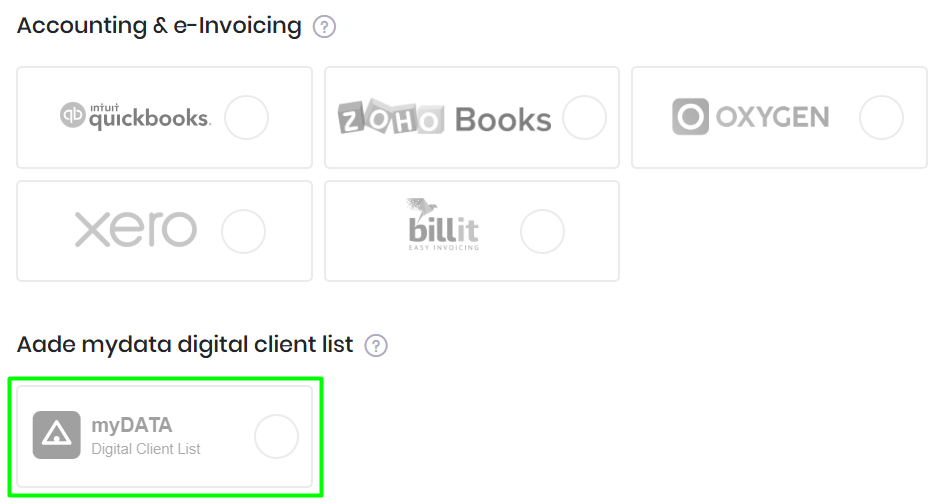
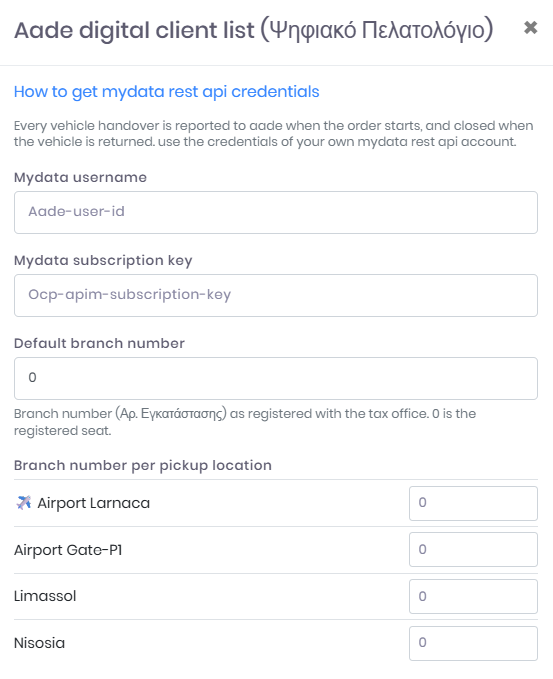
Step 2. Enter your Mydata username and Mydata subscription key.
Step 3. Enter the Default branch number as registered with the tax office. Leave 0 if you operate from the registered seat.
Step 4. Under Branch number per pickup location, enter the branch number for each location. If all locations belong to one branch, use the same number everywhere.
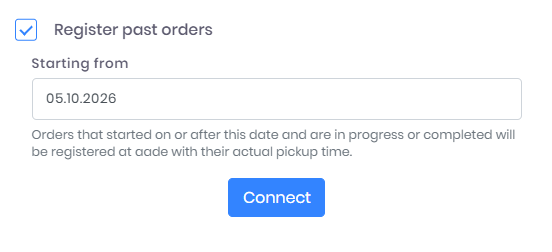
Step 5 (optional). To report orders that already started, tick Register past orders and choose the Starting from date. Orders that started on or after this date and are in progress or completed will be registered at AADE with their actual pickup time.
Step 6. Click Connect.
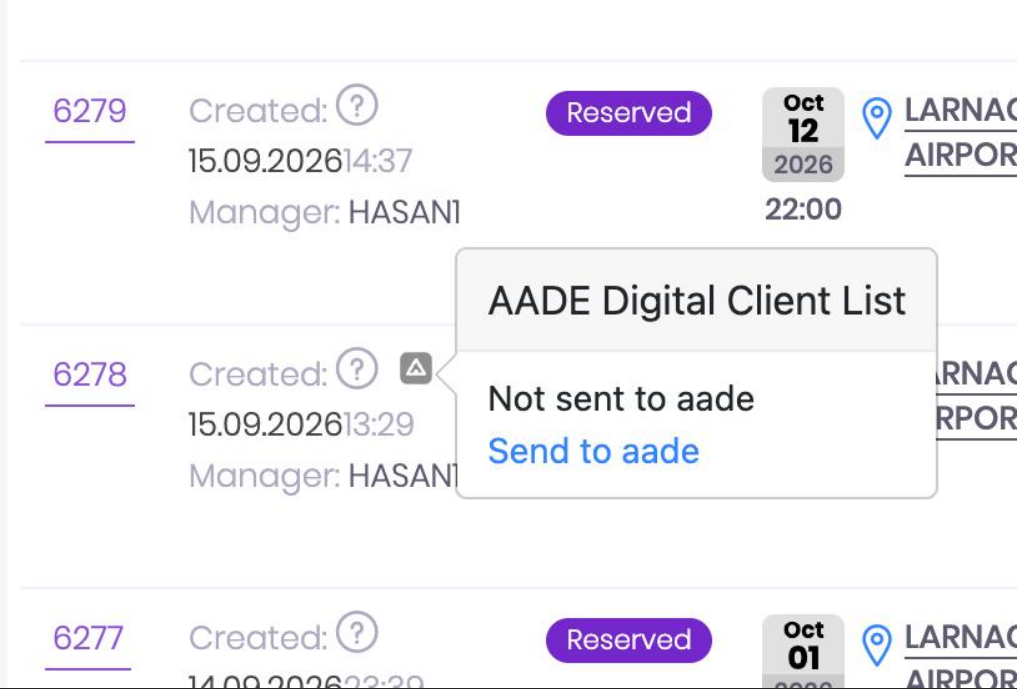
After connecting, an AADE icon appears next to the creation date in the order list. Click it to see the order’s status.
A grey icon means the order hasn’t been sent to AADE yet. Click Send to AADE to register it manually.
A blue icon means the handover is registered. The window shows the Aade record number and the current Status. From here you can also click Cancel record at aade if the record needs to be withdrawn.
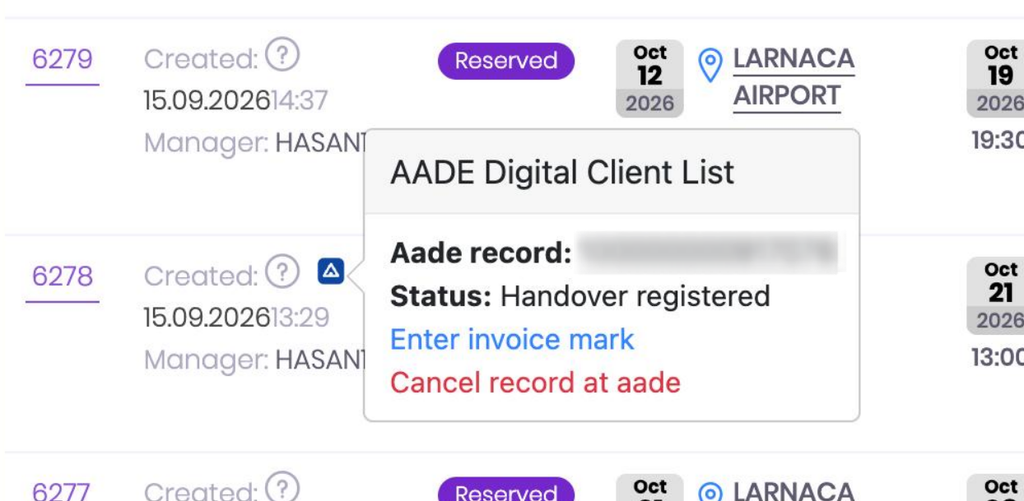
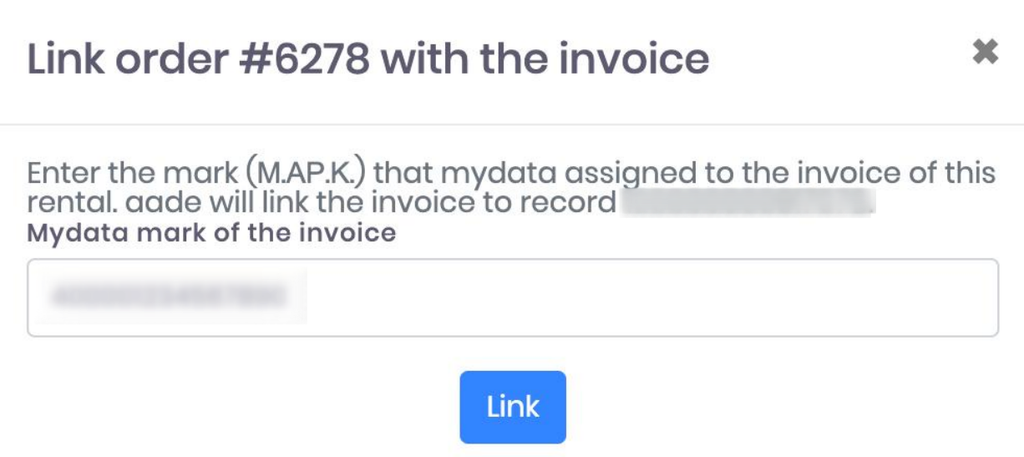
Each record must be linked to the rental’s invoice through its myDATA mark (Μ.ΑΡ.Κ.).
With Oxygen. If the Oxygen integration is connected and working, RentSyst takes the invoice mark from Oxygen and sends it to AADE automatically. No action is needed.
Without Oxygen. Enter the mark manually:
Thank you!
Your email has been added to our database. Now you will be the first to receive interesting news about your business.